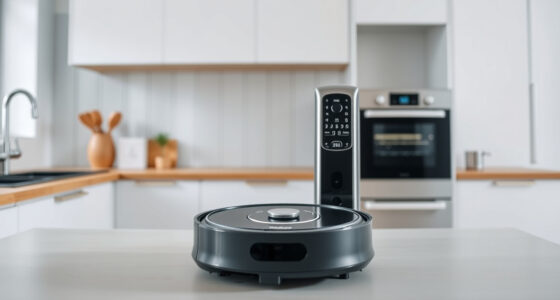
If your remote stops responding, start by checking the batteries to make certain they are properly installed and have good contact—replace them if needed. Next, verify there’s nothing blocking the signal between the remote and device, and turn off nearby electronics that could cause interference. Use the remote’s LED indicator to see if buttons are working. If it still doesn’t respond, try resetting it by removing and reinserting the batteries. For more tips, keep exploring helpful solutions.

Get home appliances delivered free with Prime
- Fast, free delivery on millions of items
- Prime Video, Amazon Music and more included
- Member-only deals all year
Key Takeaways
- Verify batteries are fresh, properly aligned, and making good contact inside the remote.
- Ensure nothing obstructs the line of sight between remote and device, and turn off interference sources.
- Check if the remote’s LED blinks when buttons are pressed to confirm functionality.
- Reset the remote by removing batteries and holding a button to drain residual power.
- Consult the device manual or customer support if basic troubleshooting doesn’t resolve the issue.
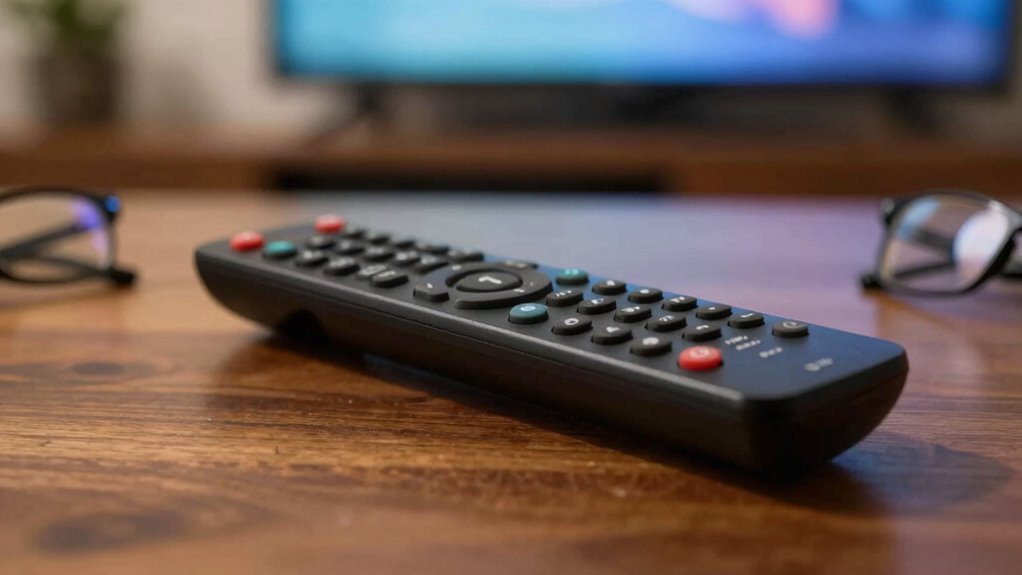
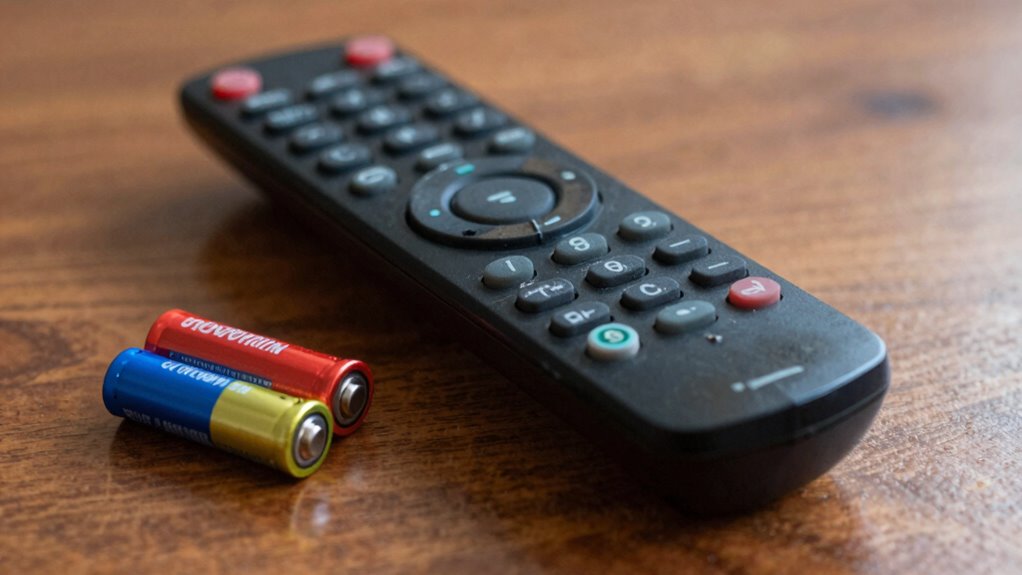
When your remote suddenly stops responding, it can be frustrating, but the solution is often simpler than you think. The first thing to check is the battery connection. Sometimes, the batteries might look fine but aren’t making proper contact inside the compartment. Remove the batteries and inspect the contacts—look for corrosion or dirt that could prevent a good connection. Clean the contacts gently with a dry cloth or a small amount of rubbing alcohol if needed. Replace the batteries with fresh ones, ensuring they’re inserted correctly, with the positive and negative ends aligned properly. A weak or improperly connected battery can cause the remote to become unresponsive, so ensuring a solid connection often solves the issue quickly.
Check and clean battery contacts, then replace with fresh batteries for quick remote troubleshooting.
Next, consider the possibility of signal interference. Many remotes rely on infrared or radio frequency signals to communicate with your device. If there are objects blocking the line of sight between the remote and the device, or if other electronic devices nearby are causing interference, your remote might not work. Remove any objects or barriers between the remote and the device, and try again. Additionally, turn off other electronics like Wi-Fi routers, Bluetooth devices, or cordless phones that could be operating on the same frequency and causing interference. Sometimes, even fluorescent lights or certain LED bulbs can disrupt signals, so turning those off temporarily can help identify the problem. Understanding remote signals can help you better diagnose issues related to interference and improve your troubleshooting process. Being aware of remote signal types can also assist in recognizing potential causes of interference.
If the remote still isn’t responding after checking the battery connection and ruling out signal interference, try testing the remote with another device, if possible. For example, many TV remotes have a small LED indicator that blinks when you press a button. Press a button and see if the LED lights up. If it doesn’t, the remote might be faulty or broken, and you may need a replacement. If it does light up, but your device isn’t responding, the problem could be with the device itself or its sensor. Understanding home theater technology can help you better diagnose the issue and determine whether your remote needs repair or replacement. Also, keep in mind that product lifespan can influence remote functionality over time, as components may wear out or become less responsive.
Another step is to reset your remote. Remove the batteries, press and hold any button for 10-15 seconds to drain residual power, then reinsert the batteries and try again. Sometimes, this simple reset can clear internal glitches. If none of these steps work, consult your device’s manual or contact customer support for troubleshooting tips specific to your remote model. Often, these simple checks save you time and money, helping you get your remote working again without unnecessary hassle.
Products Worth Considering

Philips Hue Starter Kit with Bridge Pro and 4 Retrofit LED Recessed Downlights

Philips Hue Bridge Pro Starter Kit with 4 A19 E26 Smart Bulbs

Arlo Pro Wireless Security Camera, 2K HDR, 6th Gen, 4-Camera Kit
As an affiliate, we earn on qualifying purchases.
Frequently Asked Questions
Can a Remote Stop Working Without Batteries?
No, a remote typically won’t stop working without batteries because it relies on battery power to send the remote signal. If your remote isn’t responding, it’s usually due to battery issues like dead or improperly installed batteries. Check the batteries first—replace or reinsert them—and guarantee they have good contact. If that doesn’t work, the remote’s signal might be blocked or damaged, but batteries are the most common culprit.
How Do I Reset a Non-Responsive Remote?
Imagine your remote is a stubborn door that needs a gentle push to open. To reset a non-responsive remote, start with remote troubleshooting: remove the batteries, press every button for about 10 seconds, then reinsert fresh batteries. If it still won’t respond, try replacing the batteries entirely. This simple reset often clears glitches, restoring your remote’s connection and making your entertainment system respond as smoothly as before.
Why Is My Remote Blinking but Not Working?
Your remote blinking but not working often indicates a weak or lost remote signal, typically caused by battery issues. First, check if the batteries are properly inserted and still have power—try replacing them with new ones. If the blinking persists, verify nothing’s blocking the remote’s sensor or the device’s receiver. Sometimes, a simple reset or cleaning the remote’s contacts helps restore the signal, fixing the blinking problem.
Does Remote Frequency Interference Cause Issues?
Yes, remote frequency interference can cause issues. Signal interference or frequency disruption occurs when other devices emit signals on the same or nearby frequencies, disrupting communication between your remote and the device. This can result in unresponsiveness or inconsistent performance. To fix this, move other electronic devices away from your remote or change your remote’s batteries and verify there’s a clear line of sight to the device.
Can Physical Damage Cause Remote Failure?
Think of your remote as a delicate bridge, where even small cracks can cause it to collapse. Physical damage can indeed make your remote fail, especially if the remote circuit or infrared sensors are compromised. Dropping it or spilling liquid can break internal connections or damage sensors, preventing signals from reaching your device. Inspect for visible damage, and if the circuit or sensors are cracked or broken, you’ll likely need a replacement.
Conclusion
When your remote stops responding, check the batteries, confirm there’s a clear line of sight, and test the buttons for damage. Reset the remote if needed, and verify the device’s power. If issues persist, consider reprogramming or replacing the remote altogether. By inspecting the batteries, resetting the remote, and testing the device, you cover the essentials. These steps help troubleshoot effectively, prevent frustration, and restore your remote’s functionality quickly, keeping your entertainment uninterrupted.