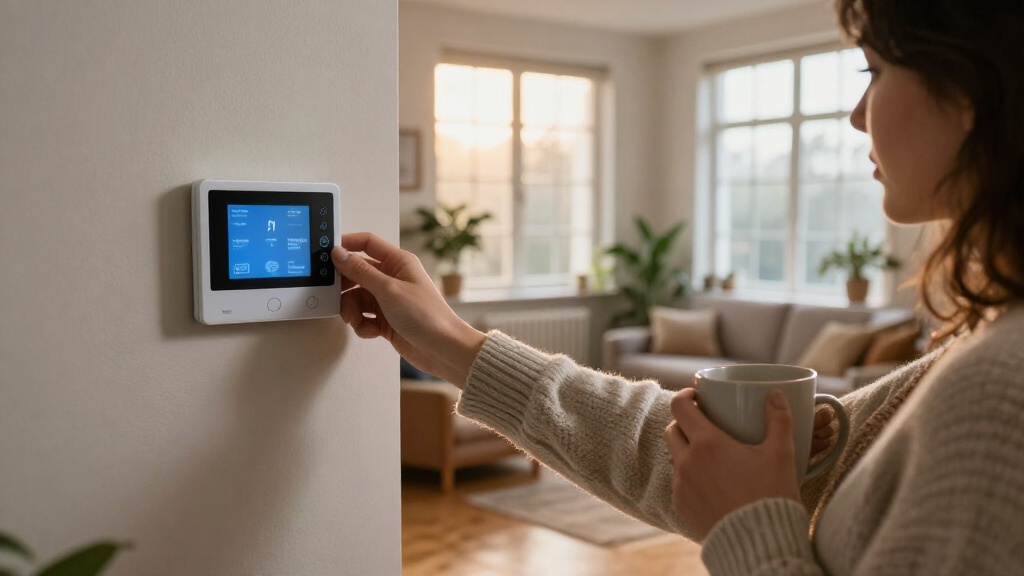

Set up a smart thermostat to control your home heating, choose temperatures for different times of day, and check that the heating system responds as expected. This guide is for homeowners and renters with permission to adjust the thermostat; it assumes basic comfort using a phone and household tools. Allow 45–90 minutes, including time to check wiring and test the system.

Get home appliances delivered free with Prime
- Fast, free delivery on millions of items
- Prime Video, Amazon Music and more included
- Member-only deals all year

ecobee Smart Thermostat Essential – WiFi Thermostat, Energy Star Certified
- ✔ Compatibility: Amazon Alexa, Android, Apple HomeKit, Google Assistant, iOS
- ✔ Connectivity: Wi-Fi
- ✔ Display: 3.74-inch LCD touchscreen
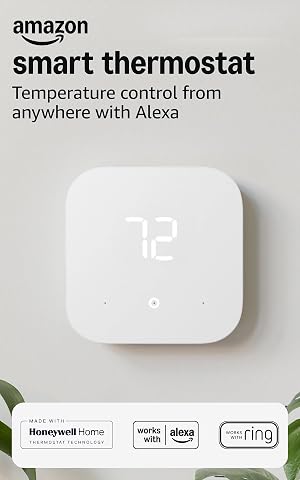
Amazon Smart Thermostat – Works with Alexa and Ring
- ✔ HVAC compatibility: Most 24V HVAC systems; not compatible with 110–240V HVAC systems
- ✔ Power requirement: C-wire or optional power adapter kit
- ✔ Connectivity: 2.4 GHz Wi-Fi (802.11 b/g/n)

Google Nest Thermostat – Smart Wi‑Fi Thermostat
- ✔ System use: Heating and cooling; heat pump use listed
- ✔ Compatibility: Google Assistant, Alexa, Android, iOS, Nest
- ✔ Connectivity: Wi-Fi: 2.4 GHz and 5 GHz
Difficulty: Intermediate | Time: 45–90 minutes
What You’ll Need
Tools & Materials:
- Smart thermostat compatible with your heating system
- Phone or tablet with the thermostat maker’s app
- Wi-Fi network details, if the model uses Wi-Fi
- Screwdriver and any mounting parts supplied with the thermostat
- Labels or masking tape and a pen for marking wires
- Your current heating schedule or preferred home and away temperatures
Knowledge:
- Basic use of a phone app
- Ability to identify your heating system type, such as a boiler, furnace, or heat pump
- Basic familiarity with switching off a circuit breaker
Check compatibility before buying or installing. Thermostats vary by system, wiring, and region. Some boilers use a simple on/off control, while heat pumps and multi-stage systems may need specific terminals or settings. If you rent, get the property owner’s permission before removing the existing thermostat. Stop and contact a qualified heating or electrical professional if the wiring is unclear, damaged, or does not match the thermostat’s instructions.
ecobee Smart Thermostat Essential – WiFi Thermostat, Energy Star Certified
The ecobee Smart Thermostat Essential earns our top spot because it is the most adaptable choice across the smart home platforms listed here. It works with Apple HomeKit, Google Assistant, and Alexa, so we do not have to build the rest of our home around a single assistant just to get convenient heating control. Its color touchscreen and app give us two direct ways to adjust temperature, while auto-scheduling and Auto-Away can help align heating with when the home is occupied.For heating comfort, the optional SmartSensor accessories are the key difference from Amazon and Nest. If the thermostat sits in a warm hallway while a frequently used room stays cold, room monitoring can give us a way to account for that mismatch. The catch is that sensors are separate accessories, and the supplied information does not promise that they are included. The product description also says installation is DIY-friendly and that a Power Extender Kit is optional for homes without a C-wire, but we should verify the exact wiring needs for our system before buying. Compared with Nest’s more compact display and Amazon’s tighter Alexa integration, ecobee is the broader, more expandable pick, though that flexibility can mean extra setup and add-on decisions.
Pros:
- Supports Apple HomeKit, Google Assistant, and Alexa.
- Color touchscreen plus mobile app control.
- Auto-Scheduling and Auto-Away support routine-based heating.
- Optional SmartSensors allow room-by-room monitoring.
Cons:
- Power Extender Kit may be needed in homes without a C-wire.
- SmartSensors are optional accessories rather than a stated inclusion.
- Available in white only.
Best for: Households that use different smart home platforms or want the option of adding room-by-room monitoring.
Not ideal for: Buyers who want room sensors included or prefer the simplest setup with no accessories to research.
Bottom line: For the widest platform choice and an upgrade path to room monitoring, ecobee is our most versatile heating pick, provided we check accessory and wiring needs first.
“For the widest platform choice and an upgrade path to room monitoring, ecobee is our most versatile heating pick, provided we check accessory and wiring needs first.”
Amazon Smart Thermostat – Works with Alexa and Ring
When our home already runs on Alexa, the Amazon Smart Thermostat makes the most sense as a focused heating control that slots into that setup. It can be managed from the Alexa app, supports voice commands through a separate Alexa device, and works with Ring. Programmable schedules and presence-based adjustments give us options for coordinating comfort with daily routines, while humidity sensing adds another measure of indoor conditions. Its ENERGY STAR certification is useful context for an efficiency-minded purchase, though actual energy use depends on the home and how we operate the system.Amazon is less platform-flexible than ecobee, which explicitly lists Apple HomeKit and Google Assistant alongside Alexa. It also lacks a built-in far-field microphone, so the thermostat itself will not listen for commands; we need an Alexa device nearby. The installation guidance in the Alexa app can help DIY buyers through setup, but the product requires a C-wire or optional power adapter kit. That makes it a less convenient bet than Nest for homes where a C-wire is absent, and we should confirm our system is a compatible 24V setup. Its 2.4 GHz Wi-Fi requirement is another check for homes with unusual network configurations. Choose it for a cohesive Alexa and Ring household, not for broad ecosystem choice.
Pros:
- Integrates with Alexa and Ring.
- Guided installation through the Alexa app.
- Programmable schedules, humidity sensing, and presence-based adjustments.
- ENERGY STAR and ECOLOGO Gold certifications.
Cons:
- Needs a C-wire or optional power adapter kit.
- Voice control requires a separate Alexa device.
- Connects only to 2.4 GHz Wi-Fi.
Best for: Alexa households that also use Ring and want app-based schedules with guided setup.
Not ideal for: Homes without a C-wire or adapter plan, users seeking built-in voice control, or households centered on Apple HomeKit.
Bottom line: Amazon is the clearest choice for Alexa and Ring users, but its wiring and separate-device requirements make it less flexible than ecobee or Nest.
“Amazon is the clearest choice for Alexa and Ring users, but its wiring and separate-device requirements make it less flexible than ecobee or Nest.”
Google Nest Thermostat – Smart Wi‑Fi Thermostat
The Google Nest Thermostat is our compact choice for heating control, particularly in a home where Google Home is already the default. It supports the Google Home app and lists Google Assistant and Alexa among its compatible controllers, so we can check in remotely or use a connected voice assistant. The product is described as compatible with heat pumps and heating and cooling, and it can provide alerts about HVAC issues. Those alerts can help us notice a system problem sooner, while remote control is useful when schedules change unexpectedly.Nest stands apart from ecobee with its 1.07-inch LCD screen, much smaller than ecobee’s listed 3.74-inch display. That compact format may suit a narrow wall or a buyer who expects to control the thermostat mainly from an app, but it offers less visible display area for on-device interaction. Amazon has a more explicit Alexa and Ring identity; Nest instead fits naturally into Google Home while still listing Alexa compatibility. Its battery-powered design works without a C-wire in most homes according to the description, but heating-only or zone-controlled systems may need a C-wire or power accessory. Compared with ecobee, it has no stated room-sensor path; compared with Amazon, it lists both 2.4 GHz and 5 GHz Wi-Fi. We should still confirm compatibility and power for our particular heating setup.
Pros:
- Works with Google Assistant and Alexa.
- Remote control through the Google Home app.
- Can operate without a C-wire in most homes, according to the description.
- Provides alerts for HVAC issues.
Cons:
- Heating-only or zone-controlled systems may need a C-wire or power accessory.
- Voice control depends on a compatible smart device and an active internet connection.
- Battery-powered unit may require periodic battery replacement.
Best for: Google Home users who want remote heating control and a compact wall-mounted thermostat.
Not ideal for: Buyers who prioritize a larger on-device display or want stated room-by-room monitoring options.
Bottom line: Nest is a compact and capable fit for Google Home users, though buyers wanting room monitoring or a larger thermostat display should look at ecobee.
“Nest is a compact and capable fit for Google Home users, though buyers wanting room monitoring or a larger thermostat display should look at ecobee.”
As an Amazon Associate we earn from qualifying purchases.
Before You Start
Read the thermostat maker’s installation guide and check the compatibility checker for your exact heating system. Locate the breaker or isolator that powers the heating controls. Switch it off before touching wires; a thermostat display going dark is not proof that every wire is safe. Do not guess at wire functions based on color, since colors can differ between installations. Take clear photos of the existing wiring and label each wire by its terminal before disconnecting anything.
Step-by-Step Instructions
Step 1: Check your system and thermostat compatibility
Identify your heating equipment and the existing thermostat model. Check the new thermostat’s compatibility guide for the system type, number of heating stages, and required power connection. Compare the labels on the existing thermostat terminals with the new thermostat’s wiring diagram. Check whether your system needs a common wire, adapter, relay, or specialist installation.
Tip:Do not rely on a listing that says only “works with boilers” or “works with heating.” Confirm the exact system and wiring type.
Check: The manufacturer’s compatibility tool or installation guide lists your system and shows how its wiring connects to the new thermostat.
Step 2: Record the existing setup
Note the current schedule and settings before removing the old thermostat. Remove its cover as directed, photograph the terminal labels and attached wires, then label each wire with the terminal name it came from. Keep any loose wires from falling back into the wall.
Tip:Label wires by terminal, such as “W” or “R,” not by color. A wire’s color alone does not confirm its purpose.
Check: You have a readable photo and a label for every connected wire, along with a record of the settings you may want to reuse.
Step 3: Turn off power to the heating controls
Locate the heating system’s circuit breaker or isolator using the system instructions, then switch off the power. Confirm the old thermostat has shut down before handling wiring. If you cannot identify the correct power switch or the thermostat remains powered, stop and get qualified help.
Tip:Some homes have separate power supplies for heating controls and equipment. Follow the manufacturer’s instructions for your system.
Check: The thermostat is off, and you have followed the system’s instructions for isolating power before wiring work.
Step 4: Mount and connect the thermostat
Remove the old thermostat from its base. Feed the labeled wires through the new mounting plate and secure the plate. Connect each wire to the matching terminal shown in the new thermostat’s instructions, and fit any required adapter only as directed. Gently check that each wire is secure and that no loose wire strands or exposed copper touch another terminal.
Tip:If a terminal label is missing from your notes, or the old and new terminal names do not match clearly, stop. Do not try a connection just to see whether it works.
Check: The thermostat is mounted firmly, every connected wire is identified in the installation guide, and no wires are loose or touching.
Step 5: Restore power and complete app setup
Reattach the thermostat front and restore power at the breaker or isolator. Follow the on-screen prompts to select the correct language, region, heating system, and control type. Install the maker’s app, create or sign in to an account as required, and connect the thermostat to your home Wi-Fi if the model uses it. Place the thermostat in a room and choose its displayed temperature unit.
Tip:Check the time zone and clock. A schedule can run at the wrong times if these settings are incorrect.
Check: The thermostat starts without an error, shows a plausible room temperature, and appears in the app if app control is part of the setup.
Step 6: Set a practical heating schedule
Choose a comfortable temperature for the times people are usually home, then set lower or otherwise suitable temperatures for sleep and unoccupied periods. Add schedule periods in the thermostat or app and select the days each period applies to. Start with a small number of periods so the schedule is easy to understand, and adjust it after observing how long your home takes to warm up.
Tip:Heating response depends on the building and heating system. A boiler with radiators may warm rooms at a different pace than a heat pump with underfloor heating.
Check: The schedule shows the correct days and times, and each period has the intended set temperature.
Step 7: Test heating and app controls
Raise the set temperature a few degrees above the displayed room temperature and wait for the system’s normal response time. Check the thermostat for a heating indicator and listen or look for the boiler, furnace, or heat pump to start. Confirm that heat reaches the expected rooms. Then lower the set temperature and confirm the heating stops when the system’s controls call for it to stop. If supported, test a temporary change in the app and check that the thermostat updates.
Tip:Allow for normal system delays. Do not repeatedly switch the system on and off while waiting for it to respond.
Check: The thermostat displays a heating demand when the set temperature is above room temperature, the heating system responds, and app changes reach the thermostat when tested.
Common Mistakes to Avoid
- Connecting wires based on their colors instead of their terminal labels. — Label each wire with the terminal it came from, photograph the original connections, and follow the new thermostat’s wiring diagram.
- Installing a thermostat that does not support the heating system or its wiring. — Check the exact system type and wire configuration with the manufacturer’s compatibility guide before starting.
- Leaving the heating controls powered during wiring. — Switch off power using the system’s breaker or isolator instructions before removing or connecting wires.
- Setting schedule times without checking the clock or time zone. — Confirm the thermostat’s date, time, and time zone before saving the schedule.
Troubleshooting
Problem: The thermostat does not power on after installation.
Solution: Check that the front is seated, power has been restored, and any required power wire or adapter is installed according to the guide. If the wiring or power supply is uncertain, turn power off and contact a qualified professional.
Problem: The thermostat shows a heating demand, but the system does not start.
Solution: Check that the thermostat is set to heating mode, the target temperature is above the room temperature, and the heating equipment has power. Check the system’s own controls for an error. If the demand continues without a response, stop changing wiring and ask a heating professional to inspect the setup.
Problem: The app cannot connect to the thermostat.
Solution: Confirm the phone and thermostat are using the network required by the thermostat model, recheck the Wi-Fi password, and follow the app’s connection steps. Restart the app and thermostat only as instructed by the manufacturer.
Problem: Rooms feel too cold or warm even though the thermostat follows its schedule.
Solution: Check the schedule periods, displayed temperature, thermostat location, and any room sensors. Adjust the set temperatures or timing gradually, and allow the heating system time to respond before making another change.
What Success Looks Like
The thermostat displays the correct room temperature and time, follows the schedule you entered, and shows a heating demand when you raise its set temperature above the room temperature. The heating system responds within its normal operating delay, and the app can control the thermostat if that feature is available. No wiring, power, or system error appears.
Next Steps
Use the schedule for several days and adjust its times or temperatures to match how the home warms and cools. Check the thermostat and heating system instructions for routine maintenance, including filter or sensor care where applicable. Keep the wiring photo and installation guide for future service. Contact a qualified professional if the thermostat reports a persistent fault, the heating behaves unexpectedly, or the system requires wiring changes beyond the manufacturer’s instructions.
Frequently Asked Questions
Can I install a smart thermostat on any heating system?
No. Compatibility depends on the thermostat, heating equipment, control wiring, and power requirements. Check the manufacturer’s guide for your exact system before installing.
What if my existing thermostat has no common wire?
Check whether the thermostat maker supplies an approved power adapter or supports your system without a common wire. Do not repurpose an unidentified wire; ask a qualified installer if the wiring guide does not match your setup.
How long should I wait for the heating to start during the test?
Use the delay stated in your heating system or thermostat instructions. Some systems wait before starting, so allow that interval once before troubleshooting.
Should I leave the thermostat on a fixed temperature or use a schedule?
Use the approach that fits your routine and system. A schedule can lower or change the target when the home is empty or people are asleep; a fixed setting may suit a steady routine or a system designed for continuous operation.